ApiNote guides
How to create a hive task and reminder in ApiNote
A note such as “check again next week” is easy to overlook. Give the follow-up its own task, connect it to the right hive and decide whether you want a phone notification. Here is the complete workflow.
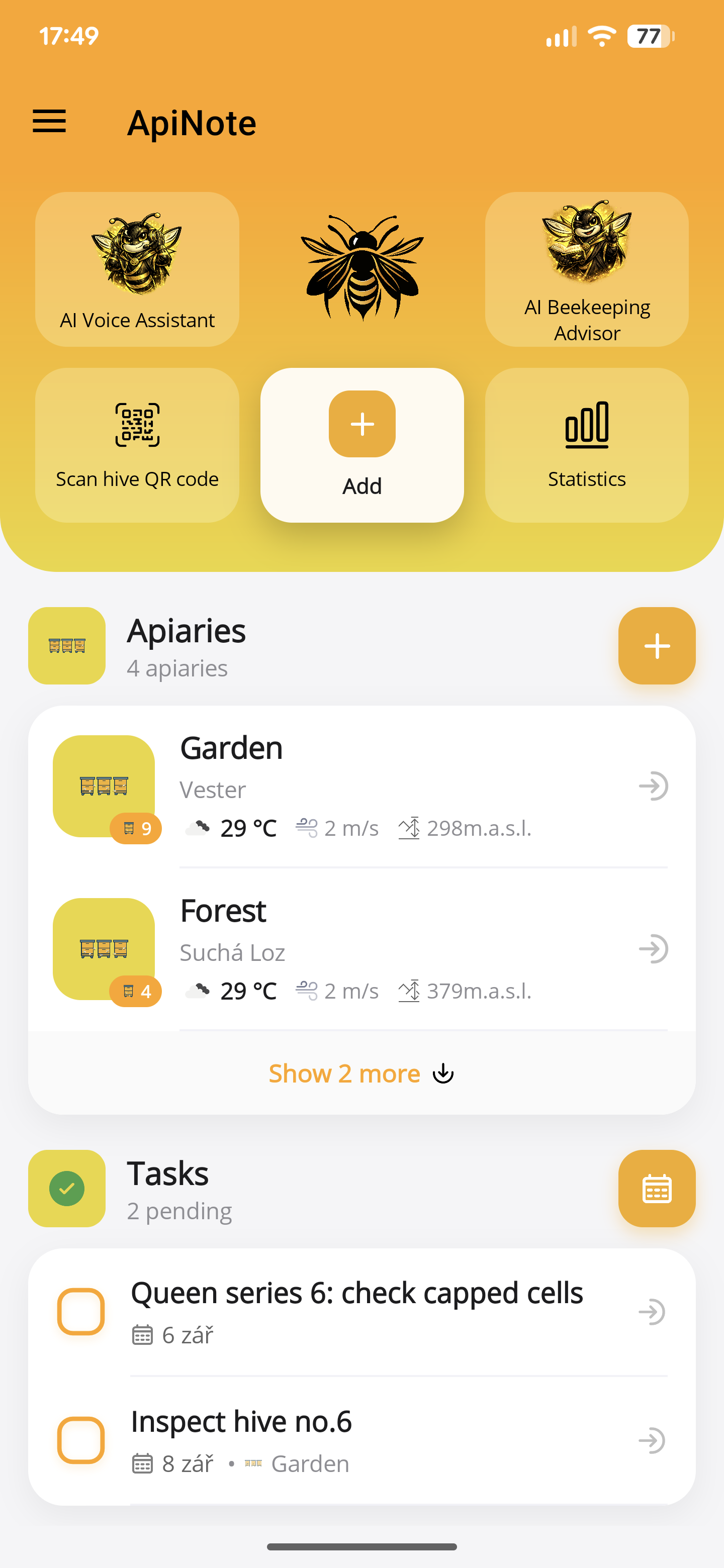
1. Open the task calendar
On the home screen, find “Tasks” and tap the calendar button beside the heading. You can also open “Tasks” from the side menu.
Select the day you want to plan for, then tap the orange + button at the bottom right. The “Add Task” form starts with that selected date; you can change it in the form.
2. Write a clear task name
Use a name that tells you what to do when you return, such as “Check queen acceptance in hive 06”. Add any extra context in the comment field, for example the observation that prompted the check.
The task name is required. Keep the due date in the date field rather than relying on wording such as “next week” in the name.
3. Set “Task Scope” to “Hive”
Select “Hive”, choose its apiary and then choose the hive. Check both names before saving, especially if different apiaries use the same hive numbers.
For work that applies to a whole apiary, use “Apiary” instead. “General” is for work not tied to a particular apiary or hive. A hive-scoped task cannot be saved until both its apiary and hive are selected.
4. Check the date and optional reminder
Set the task date. Leave “Reminder” on if you want a notification, or turn it off to keep the task in the calendar without an alert.
With reminders enabled, use “Remind before” to choose the due day or an earlier day. Turn on “Custom reminder time” if this task needs a different time from your default. Read the “Reminder will be sent on…” preview: it combines the due date, advance notice and reminder time.
5. Save and check notification permission
Tap “Save”. If notifications are not already permitted, ApiNote may ask for permission when saving a task with a reminder. Allow them if you want the phone alert.
If you decline, the task is still saved, but its reminder is turned off. You can continue using the calendar. To enable the alert later, allow notifications for ApiNote in your phone’s settings, reopen the task, enable “Reminder” and save again.
6. Mark it complete after doing the work
Find the task on its calendar day and use the completion checkbox beside it when the work is done. Marking a task complete cancels its scheduled reminder. Tapping the task itself opens it for editing.
If you need to move the visit, edit the date and review the reminder preview again. A reminder already in the past is not a useful notification plan.
If the task is saved but there is no alert
First check that the task is not complete, its reminder is on, and the preview shows the time you intended. Then check the phone’s notification permission for ApiNote. Keep using the calendar as your record of planned work; saving a task and receiving a device notification are separate things.
ApiNote · iOS & Android
Good notes make the next visit easier.
Give every colony a history you can find again. ApiNote is available for iOS and Android, free for up to five hives.
Compare Free & ProKeep exploring
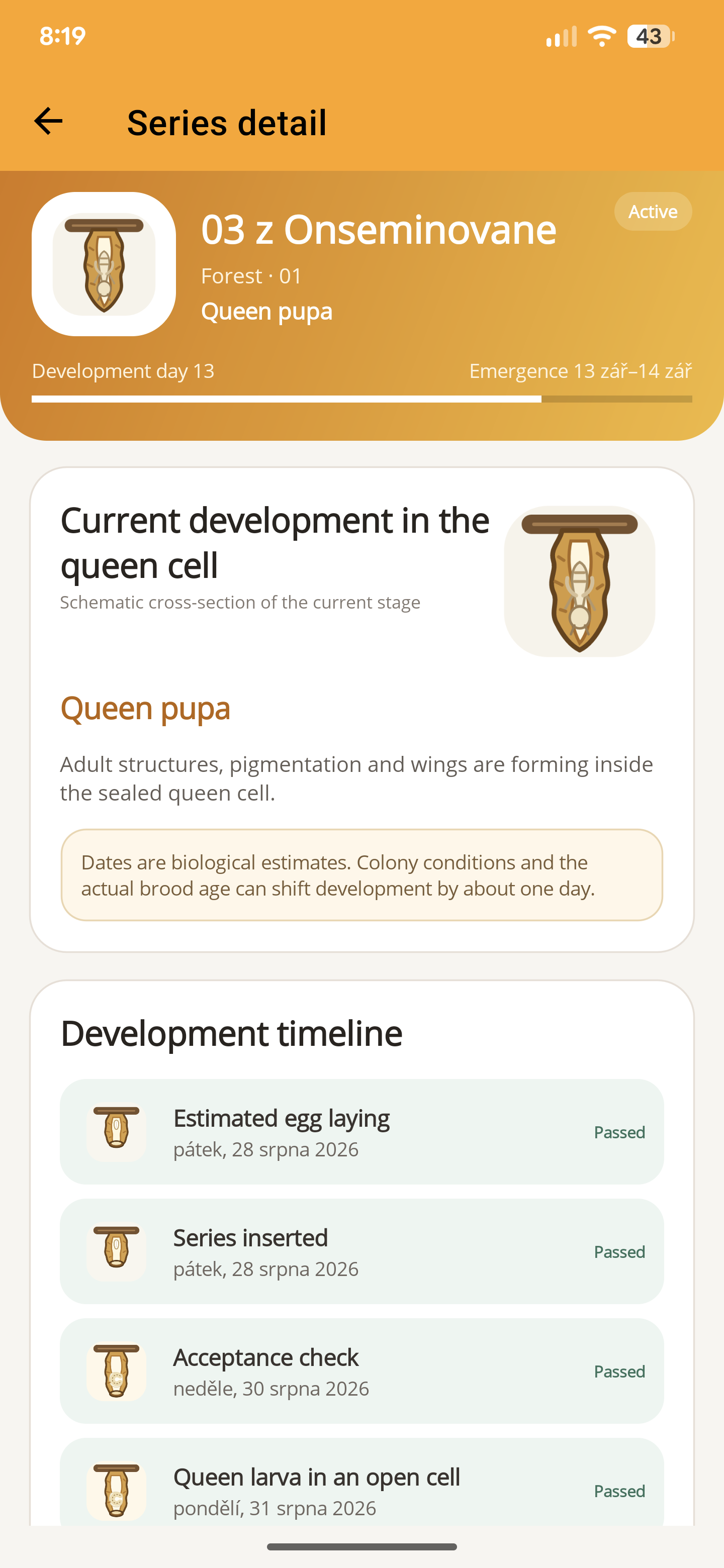
How to create a queen-rearing series in ApiNote
Set up a queen-rearing series in ApiNote: choose the cell-builder colony and breeder queen, enter brood age, and link upcoming milestones to calendar tasks.
Updated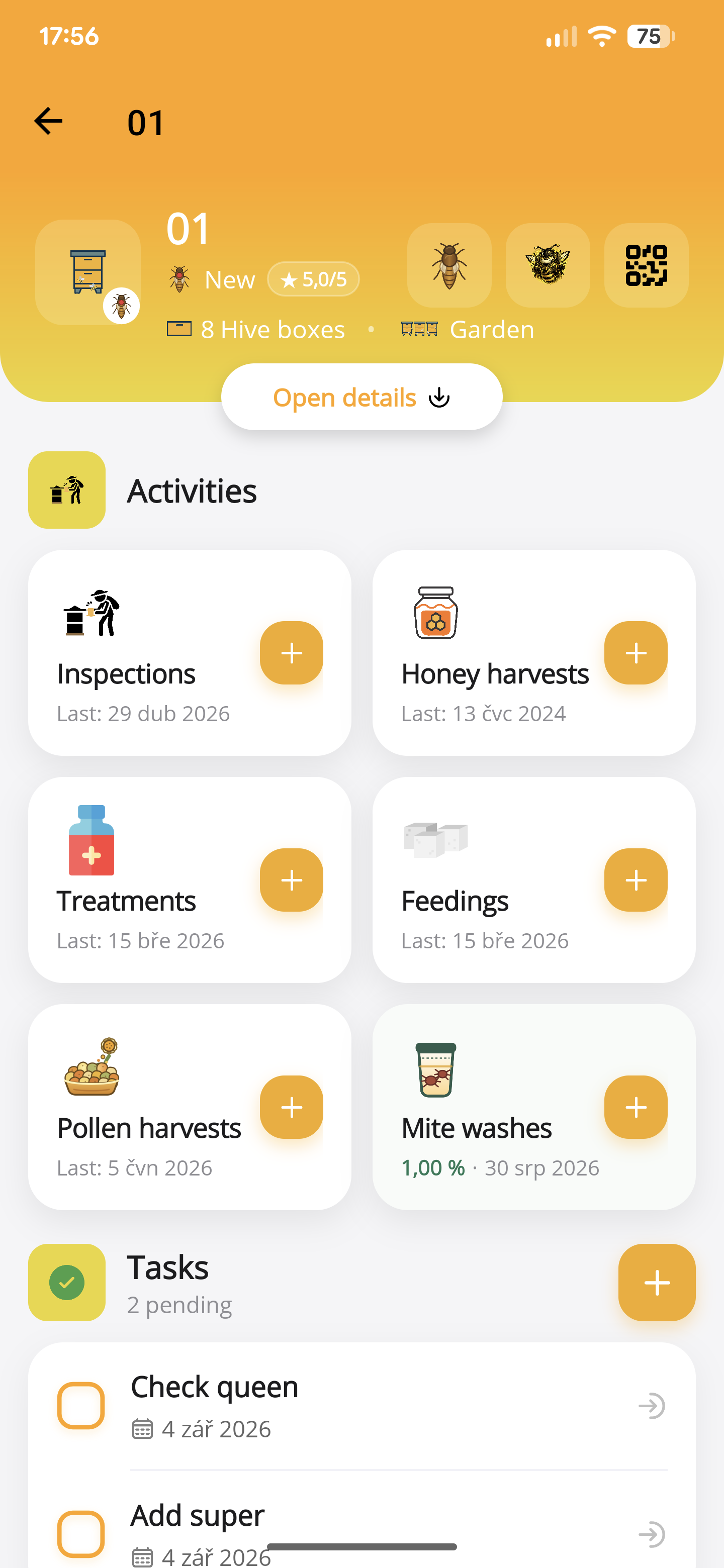
How to record a hive inspection in ApiNote
Keep brood observations, stores, queen notes and follow-up work with the right hive. Learn the manual and voice inspection workflow in ApiNote.
Updated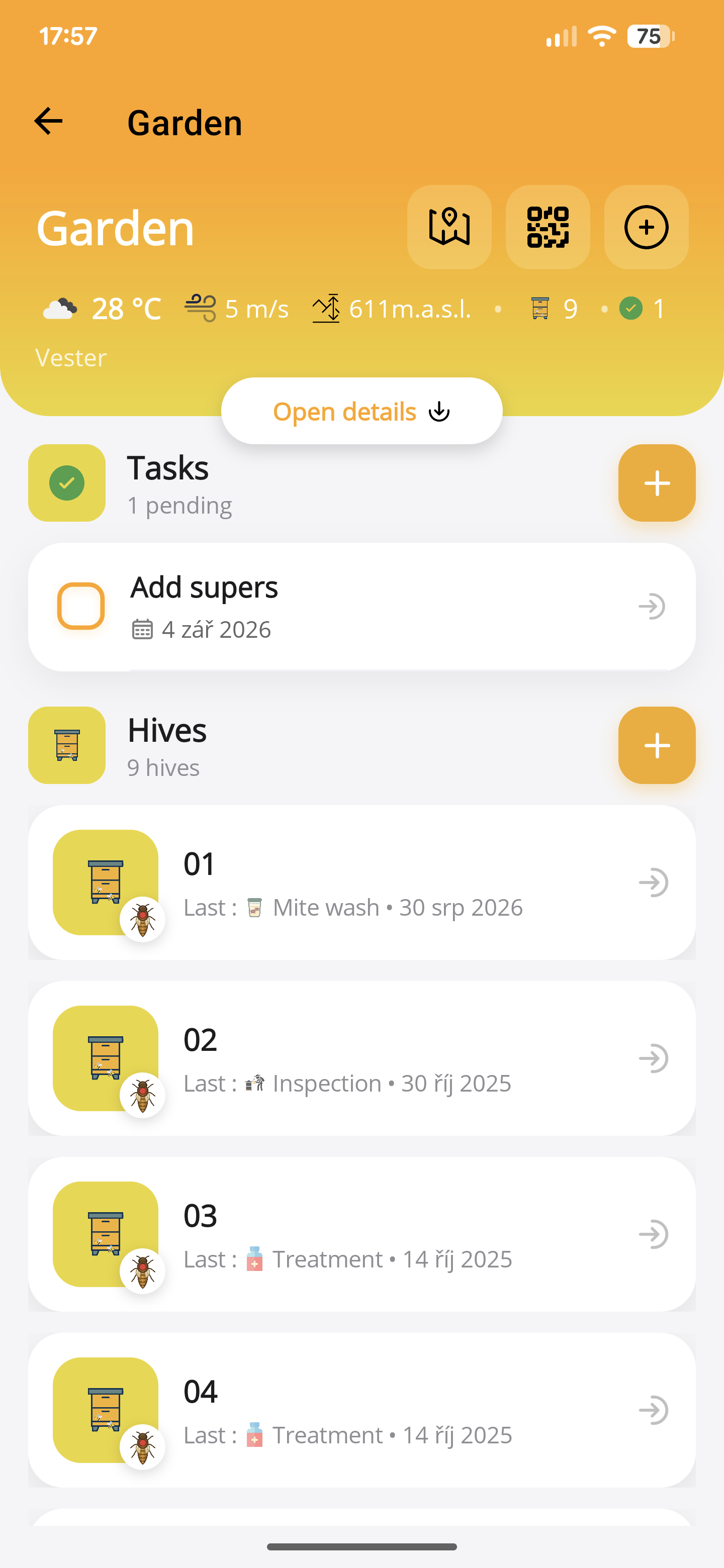
Plan an apiary visit with ApiNote tasks
Turn inspection notes into a focused apiary visit. Use hive-linked tasks, reminders, recent records and an equipment checklist to plan your work.
Updated