ApiNote guides
How to ask the ApiNote AI advisor a question—with a photo
Use the AI Beekeeping Advisor to ask a question, add context and follow up in the same conversation. You can also attach a photograph. This guide shows which + button to use, how to check the attachment and where to find the chat later.
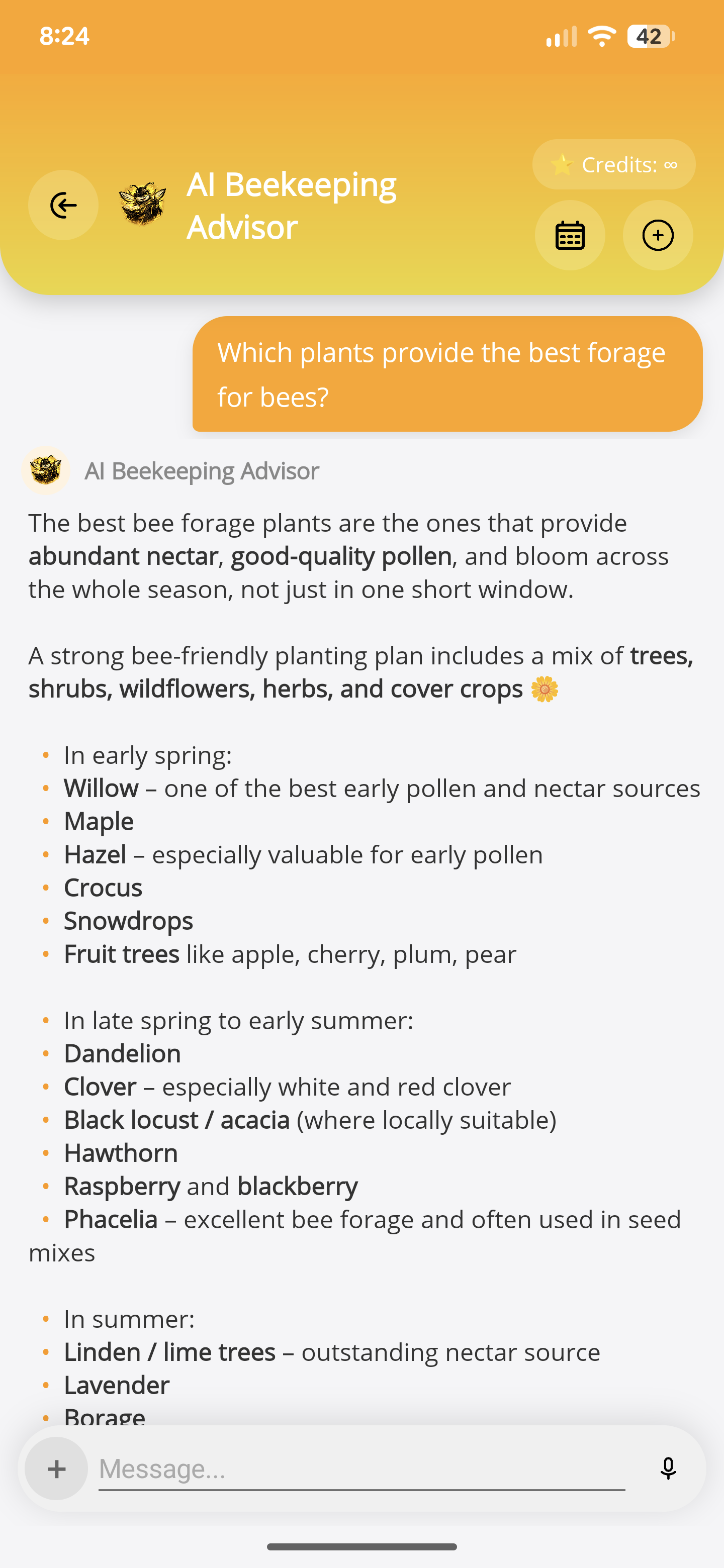
1. Open “AI Beekeeping Advisor”
Tap “AI Beekeeping Advisor” on the home screen. It is also available in the side menu. Use an internet connection and check the credit balance displayed at the top before starting.
If the available credits are exhausted, the app shows its in-app Pro offering instead of sending another message. Follow the balance and availability shown in your app.
2. Ask one specific question
Tap the message field and explain what you want to understand. Include context the answer would otherwise have to guess, such as the season, region and what you actually observed.
For example: “I keep bees in South Moravia. Which flowering periods should I look for when assessing forage around a possible apiary site?” This is more useful than asking only “Is this a good site?”. You can also tap one of the suggested questions to send it directly.
3. Add a photograph if it helps
Tap the + beside the message field at the bottom, then choose “Camera” to take a photo or “Gallery” to select one already on your phone. Camera use requires permission and a device that supports capture.
Check the attachment preview before sending. Use its remove control if you picked the wrong image. Explain in the message what you want the advisor to look at; a photograph on its own may leave important context unclear.
The selected image is sent for cloud AI processing with the request. Choose only material you intend to share, and leave out unrelated personal information. You can ask a text-only question without attaching anything.
4. Send, read and ask a follow-up
After entering text or attaching an image, tap the send control beside the message field. Wait for the response before sending another message.
If the response misunderstood the question, correct the relevant detail in the same chat. For example: “I am comparing forage availability, not asking for a plant identification.” Follow-up messages use the conversation context, so you do not need to start again for every clarification.
5. Find an earlier chat or start a new topic
Tap the calendar-shaped history button near the top right to open “Chat History”. Select a saved conversation to reopen it and continue.
For an unrelated topic, use the + at the top right to start a new chat. This is different from the attachment + beside the message field. Send any unfinished message you want to keep before starting a new chat: the new-chat action clears the current message draft and pending attachment.
Before acting on an answer
AI responses can be mistaken, especially when a photo is ambiguous or the description is incomplete. Treat the reply as an aid to your thinking, not a confirmed diagnosis or proof that a colony is healthy.
Check important decisions against direct observations and appropriate local expertise. If the conversation suggests something to inspect later, create a separate task in ApiNote so the follow-up is not left only in the chat.
ApiNote · iOS & Android
Good notes make the next visit easier.
Give every colony a history you can find again. ApiNote is available for iOS and Android, free for up to five hives.
Compare Free & ProKeep exploring
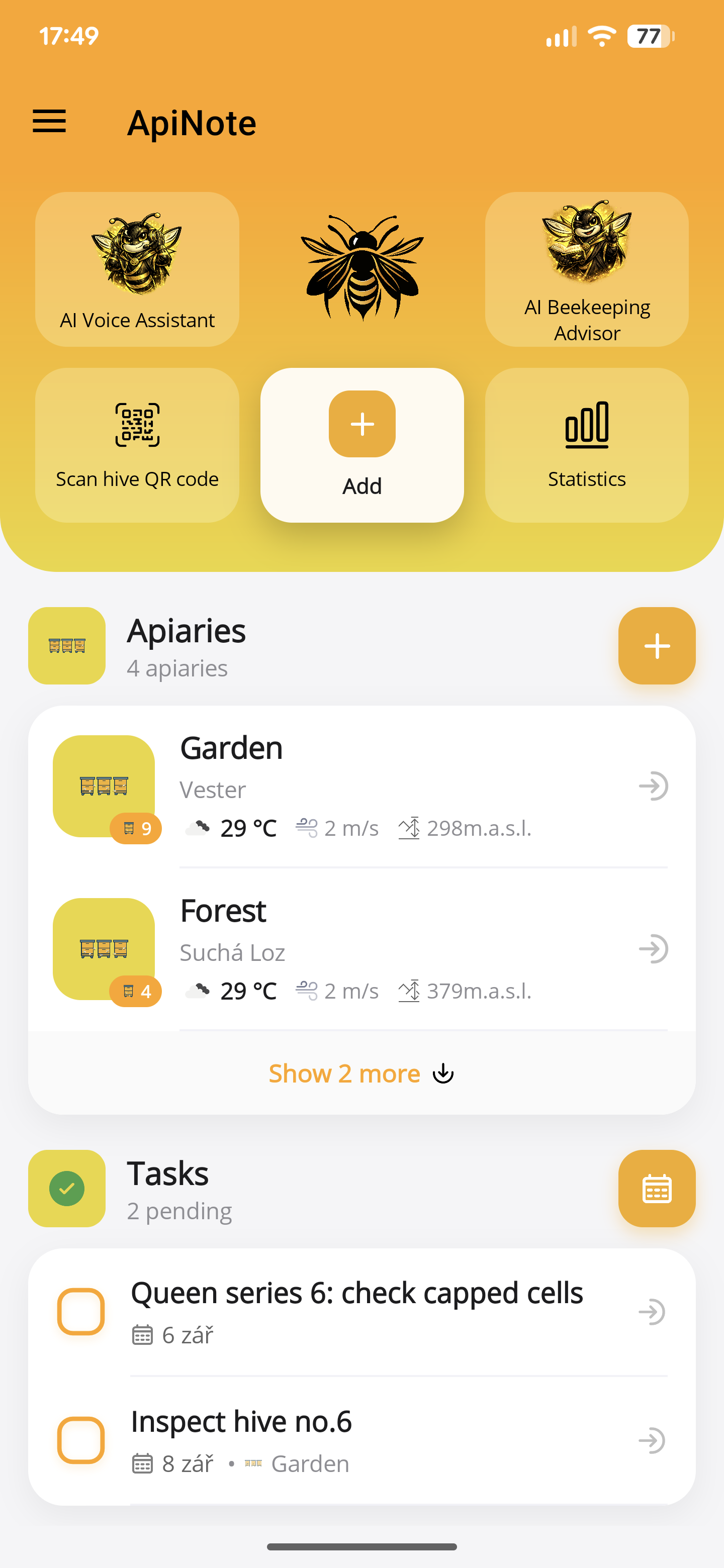
How to create a hive task and reminder in ApiNote
Turn a follow-up check into an ApiNote task. Choose the hive, set a date and optional phone reminder, then mark the work complete in your calendar.
Updated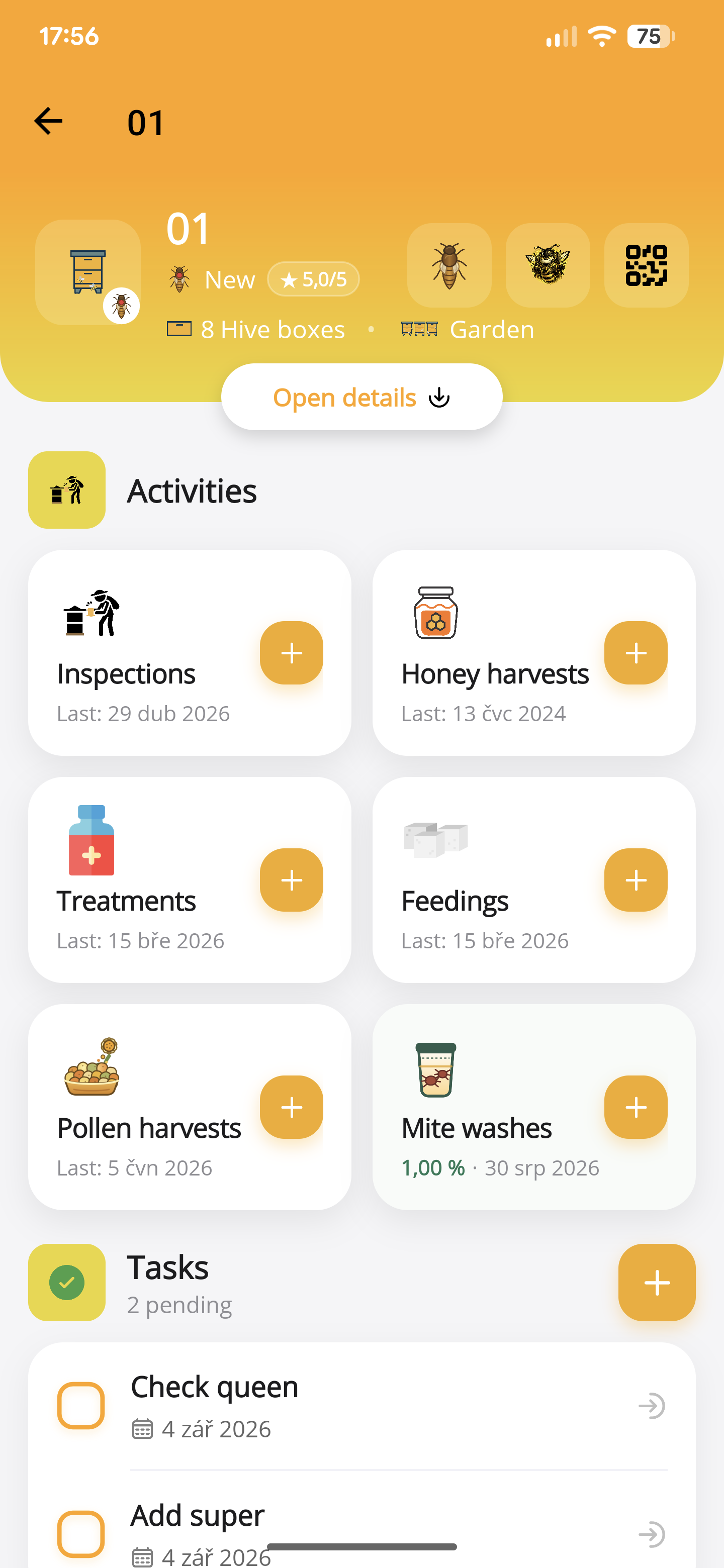
How to record a hive inspection in ApiNote
Keep brood observations, stores, queen notes and follow-up work with the right hive. Learn the manual and voice inspection workflow in ApiNote.
UpdatedYour first apiary in ApiNote: a practical setup guide
Set up your apiary, add your first hives and save an inspection in ApiNote. A practical introduction to the free beekeeping app for iOS and Android.
Updated