ApiNote guides
How to export your ApiNote records—and check the copy
An export is only useful if you can find it, open it and recognise the records inside. Whether you are reviewing a season or keeping a separate copy of your hive history, finish the job beyond the “Export is ready” message. Here is how to choose your data, save the file and check what you have kept.
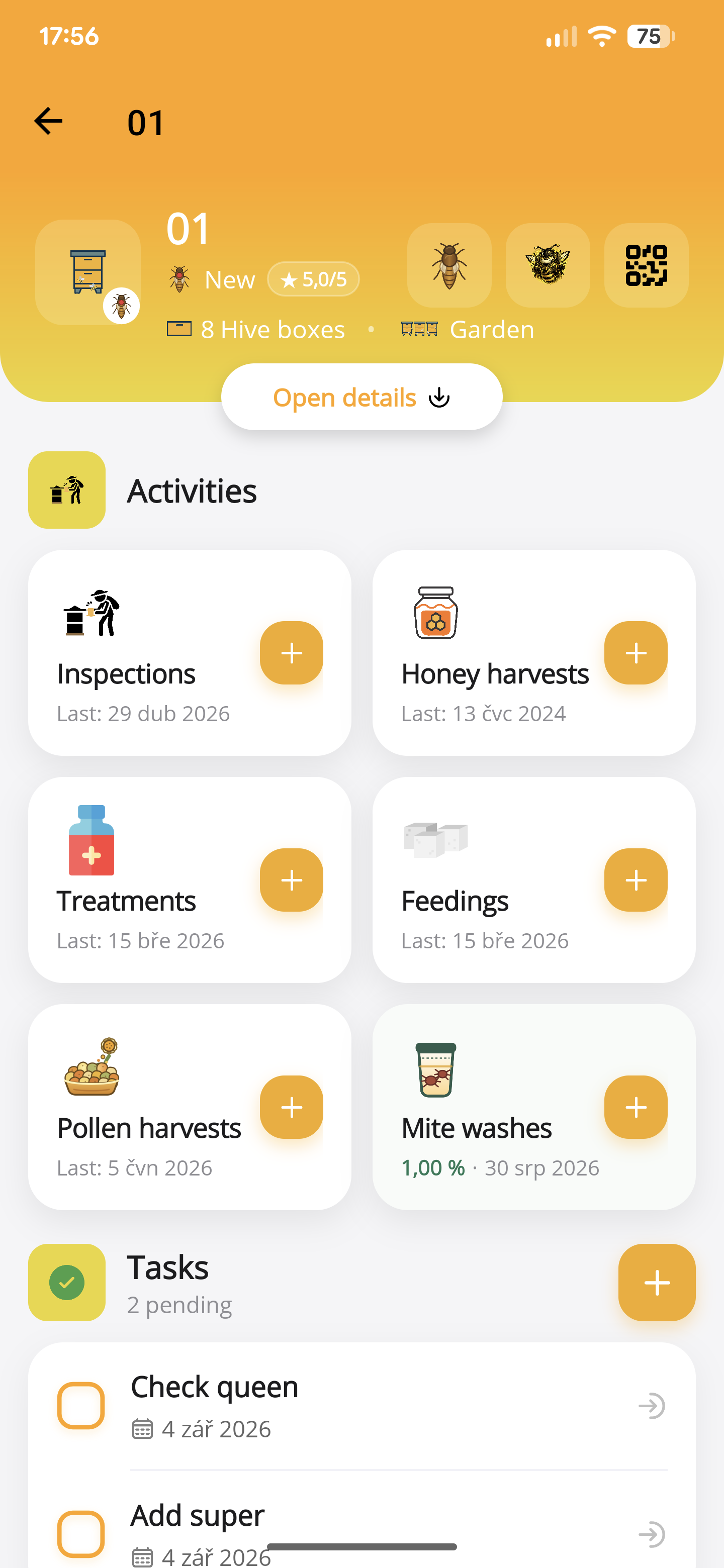
1. Decide which records you need
For a harvest review, you may only need harvest records. For a broader season file, you might also want inspections, feeding, treatments, queens and tasks. Select the datasets that answer your question rather than sharing everything by default.
Before exporting, check that the recent entries you expect are visible in ApiNote. Use a working internet connection so records that need loading or synchronisation can be retrieved. Creating the file on your phone does not mean every record is necessarily available without connectivity.
2. Open Settings, then Export data
In ApiNote, open “Settings”. Find the “Data and export” section and tap “Export data”. The export screen lists the available datasets, with a CSV filename beneath each one.
All datasets start selected. Tap a row to change its selection, or use “Deselect all” and then choose only what you need. The selection count helps you check your choice. At least one dataset must remain selected before you can create an export.
3. Create the file and save it deliberately
Tap “Create export” and wait for your phone’s sharing options. One selected dataset produces a CSV file. Selecting several produces a ZIP containing a separate CSV for each dataset—not one combined spreadsheet.
Choose a file-storage destination you control and complete that destination’s save action. The available options depend on your phone and installed apps. Dismissing the share sheet is not the same as confirming that a separate copy was saved.
Open your chosen destination afterwards and locate the file. A folder such as “ApiNote exports / 2026-09-29” is easier to recognise later than an unexplained attachment. If you chose cloud storage, also check that its upload has finished.
4. Check three things before calling it done
Open the CSV, or extract the ZIP and open one of its CSV files. A CSV is a plain table of values; the ZIP simply holds several of those tables together.
Pick a recent entry that you know well and compare the saved copy with ApiNote. For example, find one inspection for a particular hive and check its date and comment. This is a useful spot check, not proof that every historical record is complete.
- Contents: are the datasets you selected present? A file containing only column headings has no exported records in that dataset.
- Context: do the apiary and hive identifiers match the records you intended to keep?
- Readability: do dates, quantities and notes appear in sensible columns, with names and accented characters intact?
If the CSV opens in one long column
This can be an import setting rather than a damaged export. ApiNote writes comma-separated CSV files using UTF-8. In Excel versions with “From Text/CSV”, use the Data tab to import the file and choose a comma as the delimiter. Check the preview before loading it.
If names display with broken accents, check that the import uses UTF-8. Microsoft’s guidance linked below explains text import and UTF-8 handling. Menu wording varies by Excel version and platform.
Treat identifiers as text when necessary: a hive name such as “01” should not silently become “1”. Check dates and decimal quantities before using them in calculations. Keep the original export unchanged and make your analysis in a separate working copy.
5. Keep inspection photos as a separate job
ApiNote’s current inspection photos are stored locally on the device. The inspection CSV can contain a “PhotoPaths” column, but those path strings are not copies of the image files. The export ZIP contains CSV tables, not a photo collection.
Before changing or clearing a phone, preserve important pictures separately and verify that you can open them from the place where you saved them. Keep enough context—such as hive identifier and inspection date—to reconnect a picture with the right observation.
A portable data export is useful for reading and analysis. Do not treat the existence of a ZIP as proof that the whole app, including its photographs, can be restored on another device.
6. Leave yourself a copy you can trust next time
Keep a short note beside the file: when you exported it, which datasets you selected and what you checked. For example: “29 September 2026; inspections and harvests; opened both tables; checked one recent entry in each; photos stored separately.”
If you correct records later, create a new dated export. Retain the earlier original when it is useful to understand what changed. Give each copy a clear purpose instead of overwriting the only file you have checked.
Before sharing a file with someone else, review what is included. Apiary locations, contact details, comments and financial entries may go beyond what that person needs. Choose the relevant datasets and check the resulting files.
Sources & further reading
ApiNote · iOS & Android
Good notes make the next visit easier.
Give every colony a history you can find again. ApiNote is available for iOS and Android, free for up to five hives.
Compare Free & ProKeep exploring
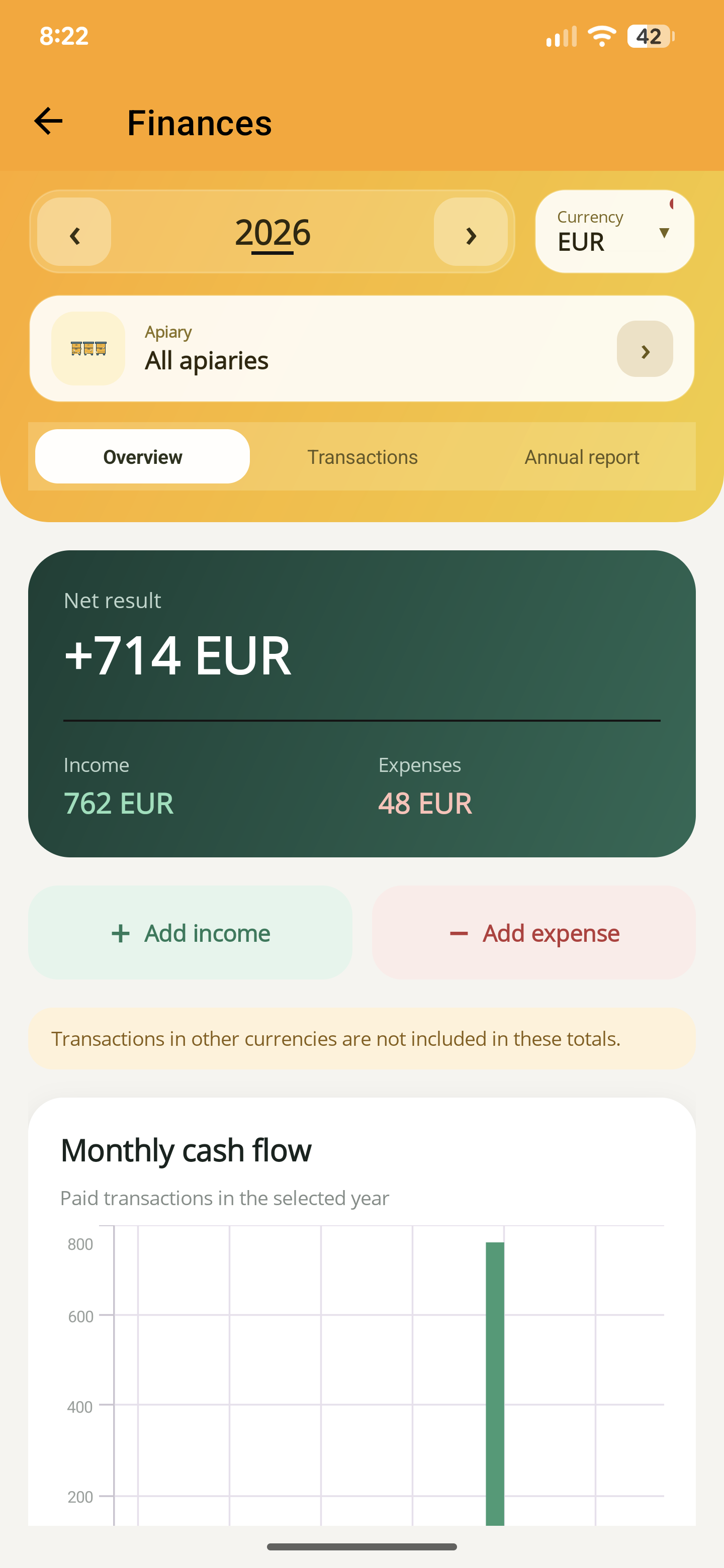
How to record income and expenses in ApiNote
Record a honey sale or beekeeping expense in ApiNote, choose its currency and apiary, and understand why paid and planned transactions appear differently.
UpdatedHow to record a hive inspection in ApiNote
Keep brood observations, stores, queen notes and follow-up work with the right hive. Learn the manual and voice inspection workflow in ApiNote.
Updated
Make sense of your beekeeping statistics
Compare honey harvests and colony records without confusing missing data with poor performance. A practical guide to using ApiNote statistics and CSV export.
Updated